
Overview
MCP Sources let you connect an MCP-compatible source, such as your Mintlify docs, so Pierview can query it before writing content. The AI uses your documentation to ground articles in accurate product details: features, terminology, and how things actually work. This means generated content references your real product instead of guessing.Your MCP server must be publicly accessible with no authentication
required. Pierview queries the endpoint without credentials, so a private or
auth-gated server cannot be used.
Step 1: Open the Documents page
In Pierview, go to Brand Kit → Documents. Find the MCP Sources card and click Add Source.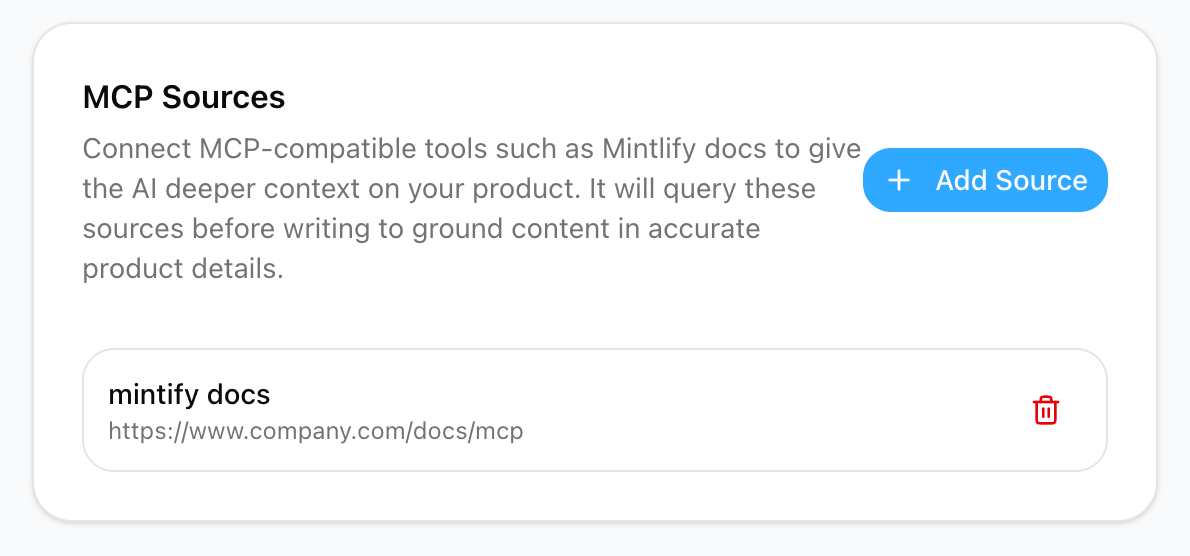
Step 2: Add your MCP server
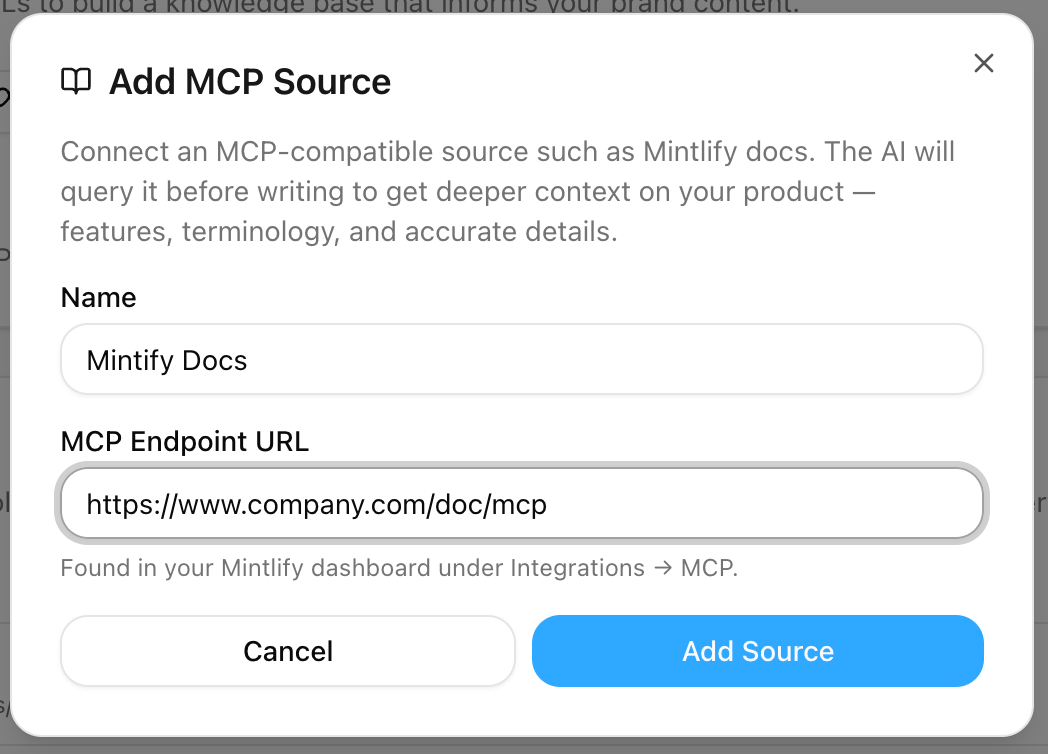
In the dialog, enter:| Field | What to enter |
|---|---|
| Name | A label for the source (e.g. Mintlify Docs) |
| MCP Endpoint URL | The full URL of your public MCP server (e.g. https://your-docs.mintlify.app/mcp) |
How It Works
When Pierview generates an article, it queries your connected MCP sources during the research phase. Information retrieved from your documentation is prioritized when grounding the content, so the AI describes your product accurately rather than relying on general web knowledge alone. You can connect more than one source, all enabled sources are queried for each piece of content. To remove a source, click the trash icon next to it in the MCP Sources card.Troubleshooting
Add Source fails or rejects the URL
Add Source fails or rejects the URL
The endpoint URL must start with
https://. Double-check the URL is
complete and points to your MCP endpoint (often ending in /mcp).Content isn't reflecting my docs
Content isn't reflecting my docs
Make sure the MCP server is public and requires no authentication,
Pierview queries it without credentials. If the server is auth-gated or
behind a login, queries will fail and the AI will fall back to web research.