
Overview
The Webflow CMS integration lets you publish SEO-optimized content directly to your Webflow site’s CMS collection, as a draft or live, straight from Pierview. Set up your connection once, then export any generated article with a single click. When you map the Content field, you choose one of two approaches: Rich Text (recommended, zero template changes) or Article HTML (advanced, full table rendering). Step 3 walks through both so you can pick the right one.Step 1: Generate a Webflow Site API Token
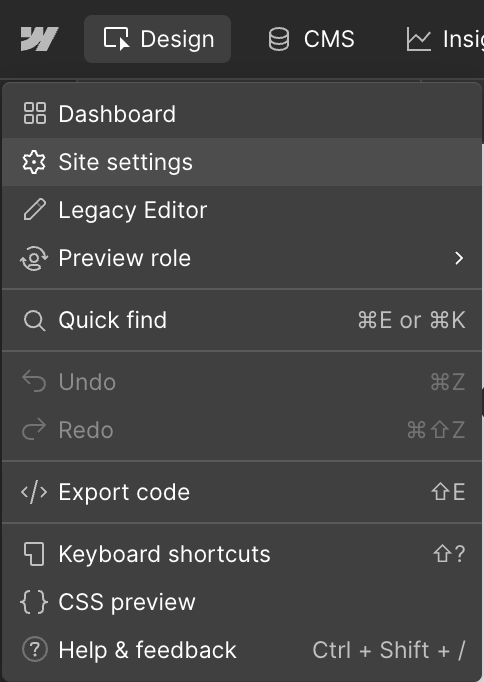
- In Webflow, open your site, click the Webflow icon in the top-left, then choose Site settings from the dropdown.
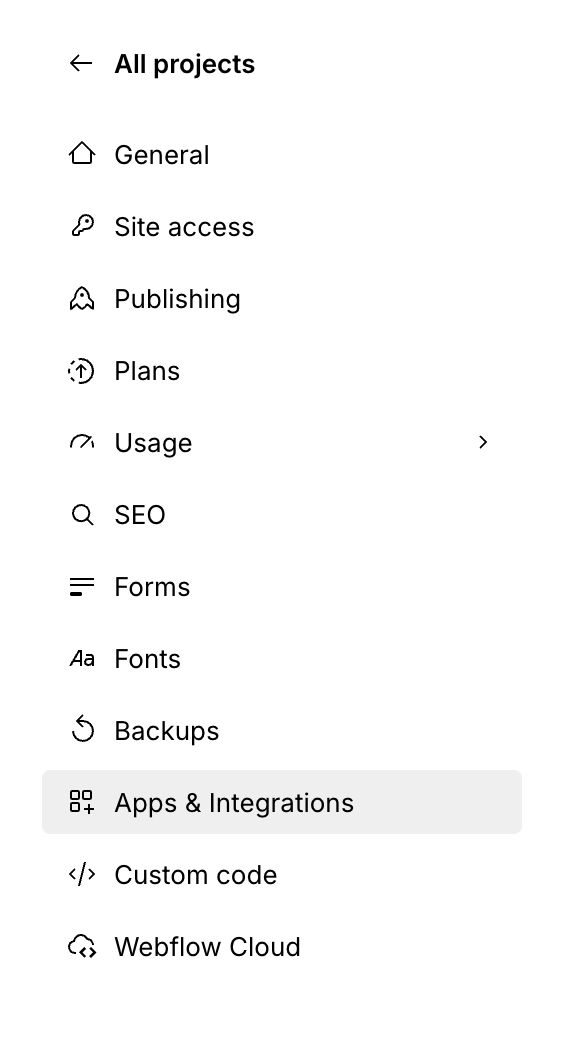
- In the settings sidebar, click Apps & integrations.
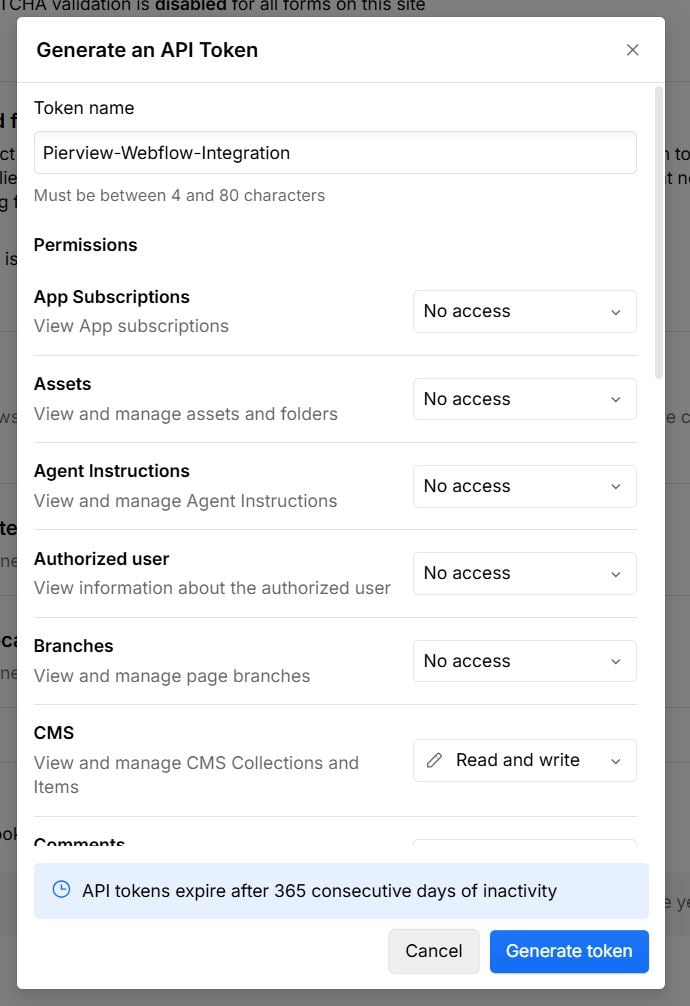
- Scroll to the API access section and click Generate API token.

- Name it
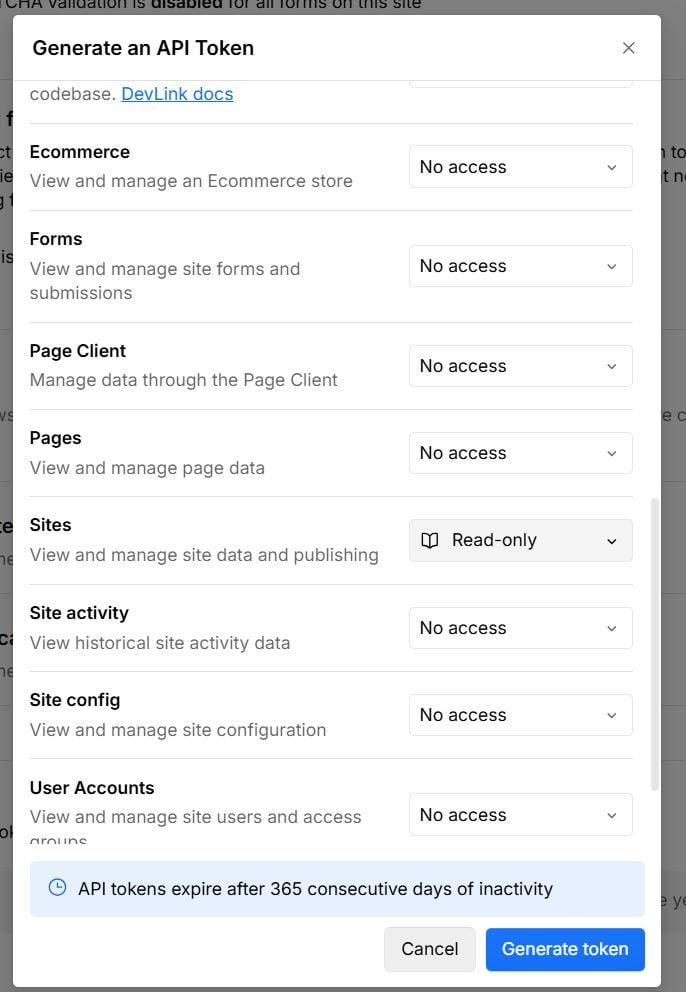
Pierview, and grant these scopes:- CMS: Read and write (
cms:read,cms:write) - Sites: Read (
sites:read)
- CMS: Read and write (
- Copy the token.
Step 2: Connect Pierview to Webflow
- In Pierview, go to Settings → Integrations → CMS Integrations and click Connect next to Webflow.
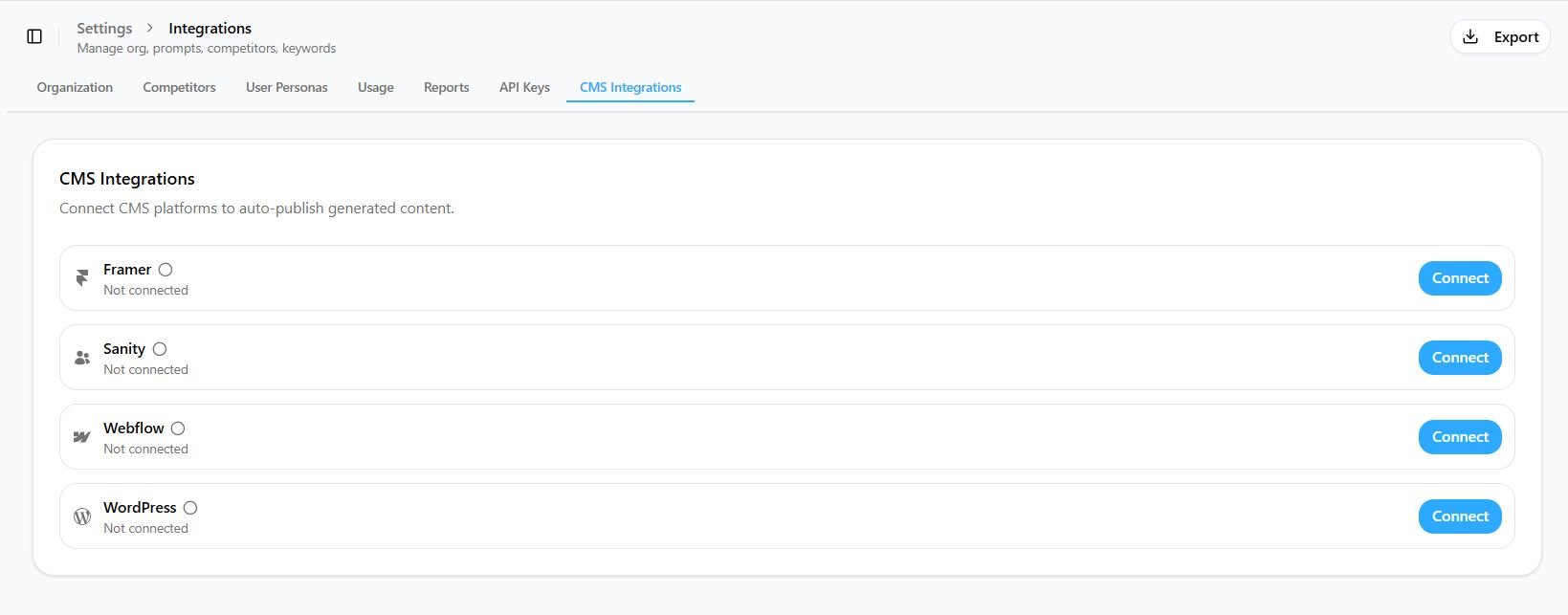
- Paste your Site API token, then click Fetch Sites and pick your site.
- Select the CMS collection where content should be published (e.g. “Blog Posts”).
- Map the fields:
- Title →
Name(the collection’s name field) - Slug →
Slug - Content → choose Rich Text or Article HTML (see Step 3)
- Title →
Step 3: Choose how to publish Content
Pierview gives you two ways to map the Content field. Pick based on whether you need tables to render automatically.Already have blog posts? Use Rich Text. It publishes into your existing Rich Text field (e.g.
Post Body), so old and new posts share the same template with zero changes and full backward compatibility. No conditional visibility, no template surgery.Option A: Rich Text (recommended, simplest)
Map Content → your Rich Text field (e.g.Post Body). When Pierview detects a Rich Text field in your collection, it selects this for you automatically.
- Works with your existing blog template as-is, with no Webflow Designer changes.
- Existing posts keep rendering exactly as before, since Pierview writes to the same field they already use.
- Headings, paragraphs, bold, italics, lists, links, and images all render natively.
Adding a table in Rich Text
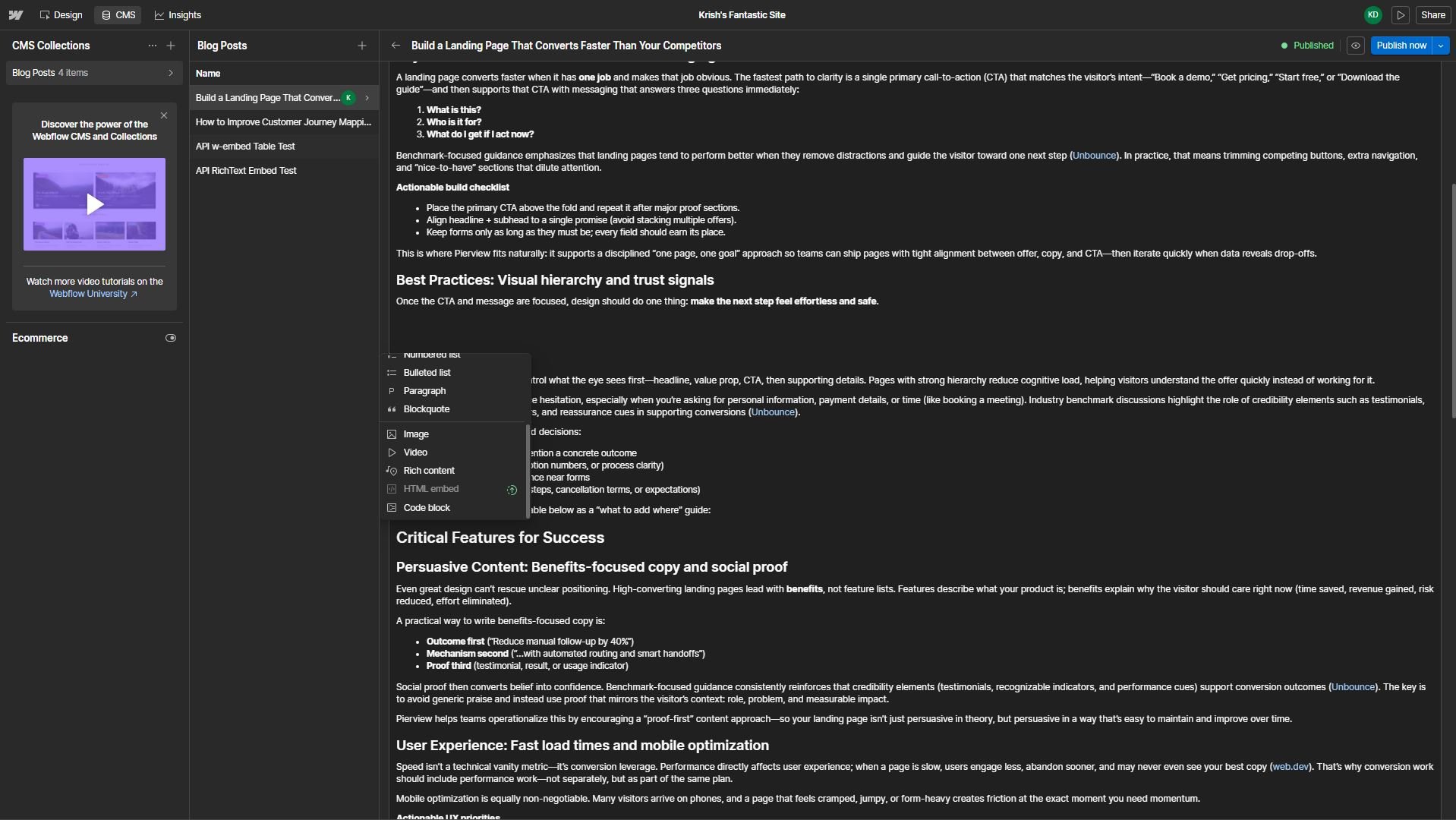
Pierview publishes everything except tables into the Rich Text field. To place a table, copy it from Pierview and drop it into an HTML embed block inside Rich Text:- In Pierview’s content editor, hover the table and click the copy button, then choose Copy as HTML.
- In Webflow, open the post and click into the Post Body Rich Text field at the spot where the table should appear.
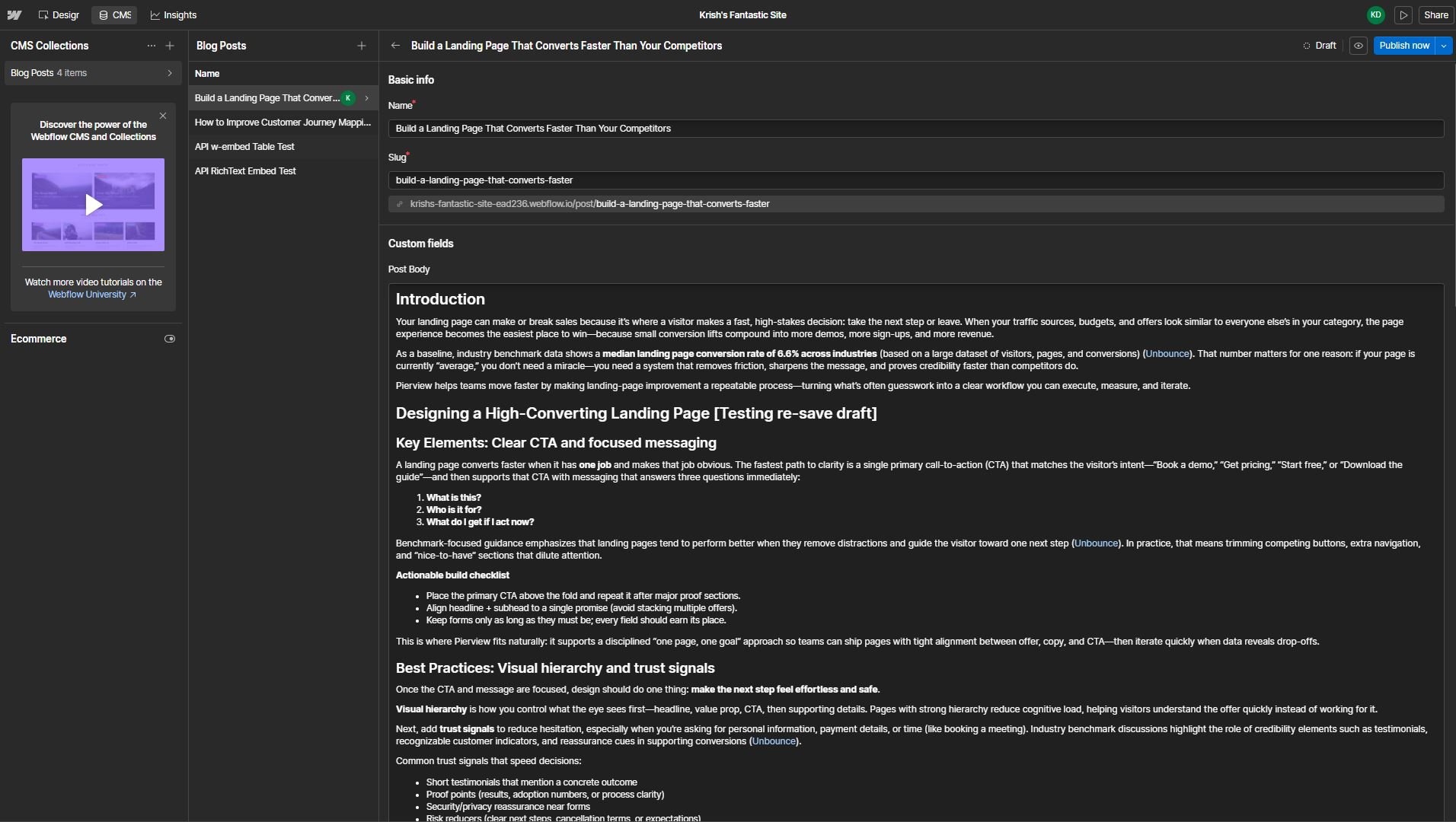
- Click the
+(add block) button and choose HTML embed. - Paste the copied HTML and apply. The table now renders inline with the rest of the article.
Option B: Article HTML (advanced, full table support)
Choose this only if you need tables to render automatically without any manual steps. Webflow’s built-in Rich Text field strips tables out, so Pierview writes the article as HTML into a Plain Text field instead, which you display using a Custom Code Embed in your blog template. This setup takes about 5 minutes and only needs to be done once. In the field mapping, set Content → your “Article HTML” field (you’ll create it next).a. Add the field in your collection
- In Webflow, open your CMS collection (e.g. “Blog Posts”), where you’ll see your existing fields listed.
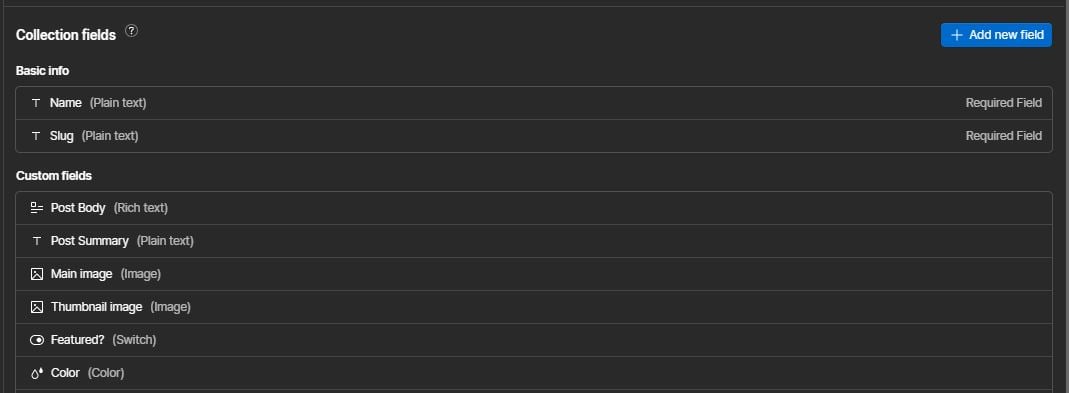
- Click + Add new field, choose Plain Text, name it Article HTML, and set its text type to Multiple lines (long text).
- Click Save Field.
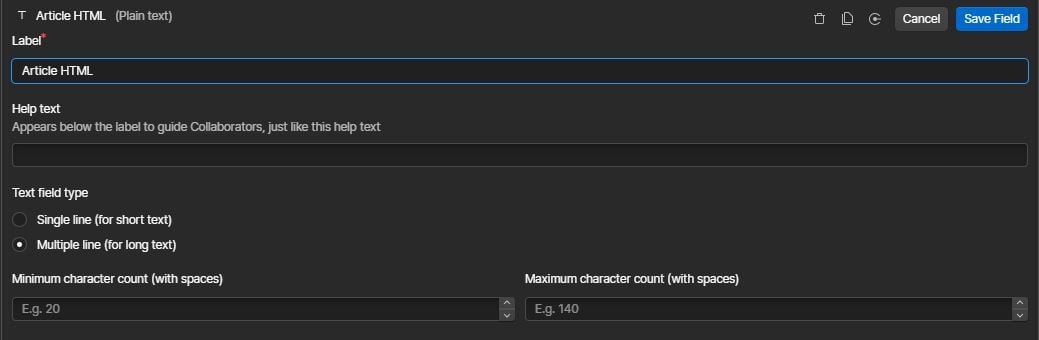
b. Add a Code Embed to your blog template
- Open your blog post template page in the Webflow Designer.
- In the Add panel (left sidebar), go to Components → Embed and drag it onto the page where you want the article body to appear.
- Inside the Embed settings, click + Add field and choose your Article HTML field to bind it.
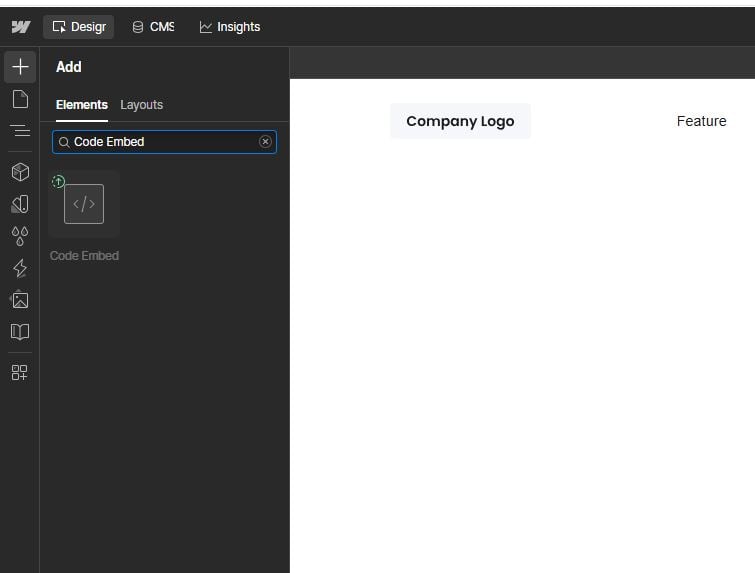
c. Already have blog posts? Set up conditional visibility
If your site already has blog posts using a Rich Text field (e.g.Post Body), you need to tell Webflow when to show each element, otherwise old posts will show an empty embed and new posts will show an empty Rich Text block.
Pierview writes to the new Article HTML field and never touches your existing Post Body field, so your old content is completely safe. You just need to add a visibility rule to each element on the template page:
- Select your Rich Text element → go to Settings panel → Conditional Visibility → set it to show only when
Post Bodyis set. - Select your Code Embed element → same panel → show only when
Article HTMLis set.
No existing blogs? Skip this step, it only applies if you already have posts in your collection using a Rich Text field.
d. Match your brand’s table styles (optional)
This step applies to the Article HTML approach only. (With Rich Text, content inherits your site’s styles automatically, so there’s nothing to configure here.) Pierview ships sensible default table styles, but you can override them to match your site. Because all Pierview content is wrapped in.pv-content, one CSS block controls everything.
In Webflow Designer → Site Settings → Custom Code → Head Code, add:
You’re Connected!
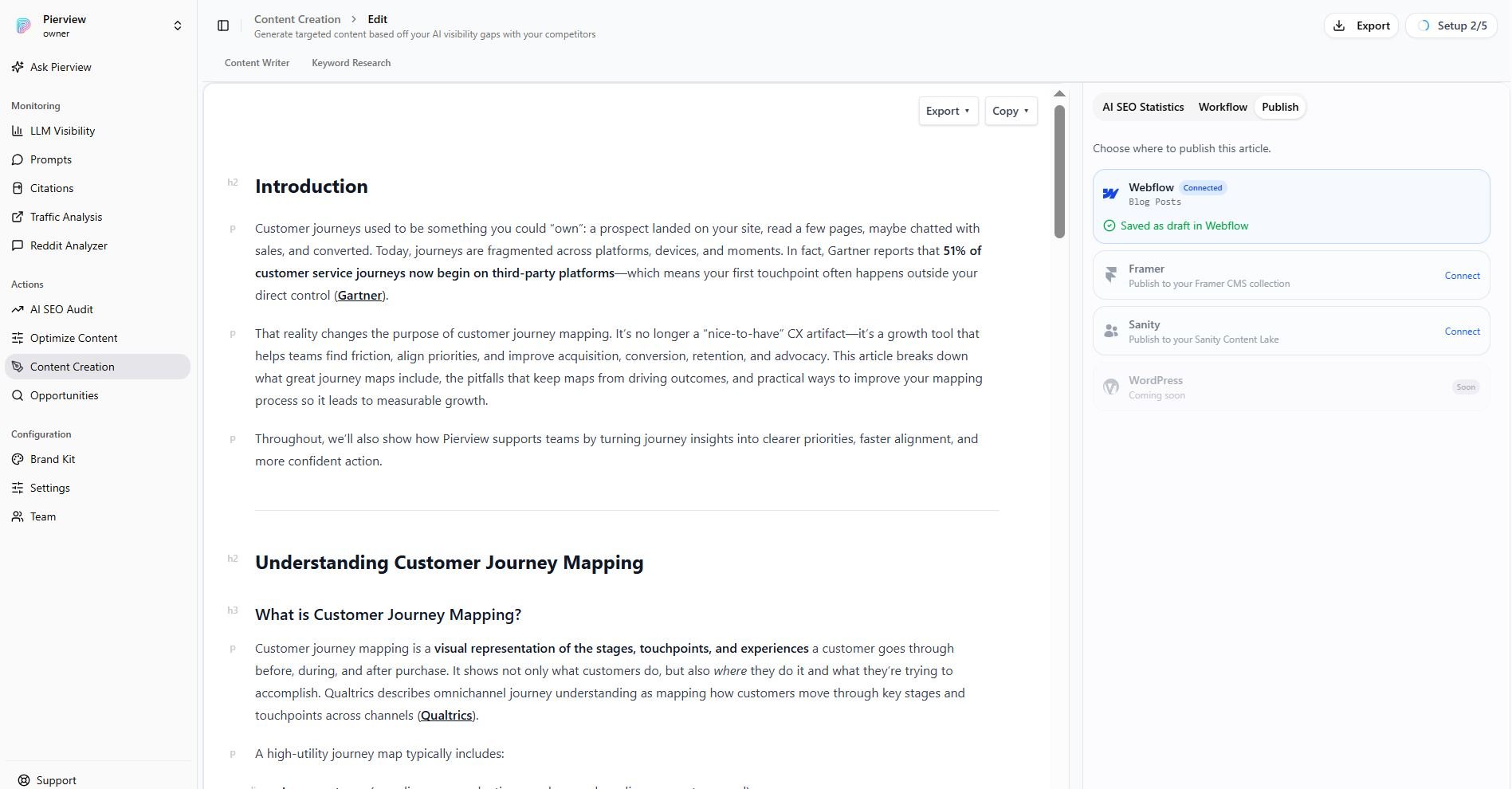
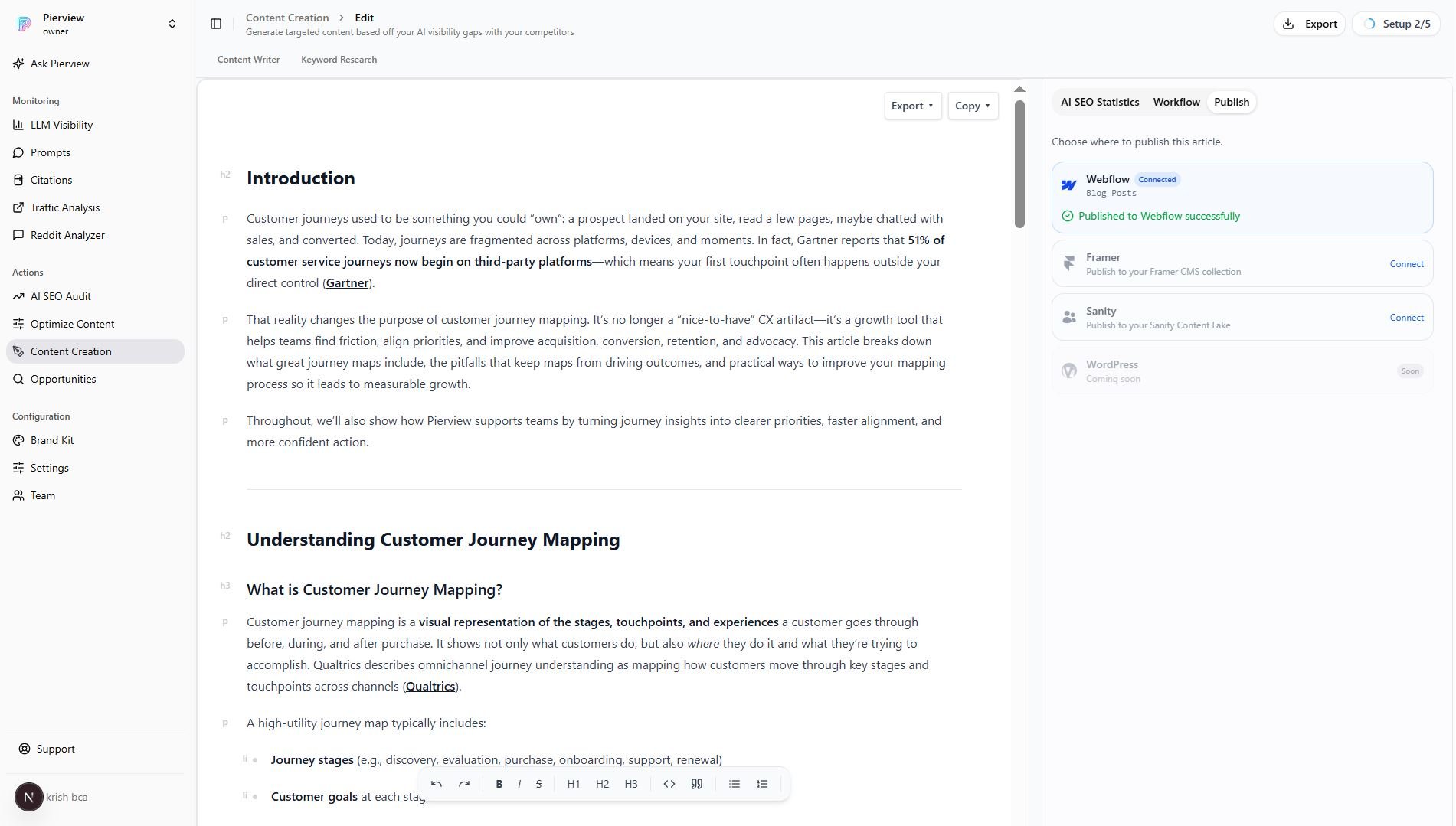
Open any content generation and click Publish in the top-right sidebar. Choose Save as Draft (staged in Webflow, not visible to visitors yet) or Publish Live to make it live. Re-publishing the same article updates the existing item, so it will never create a duplicate.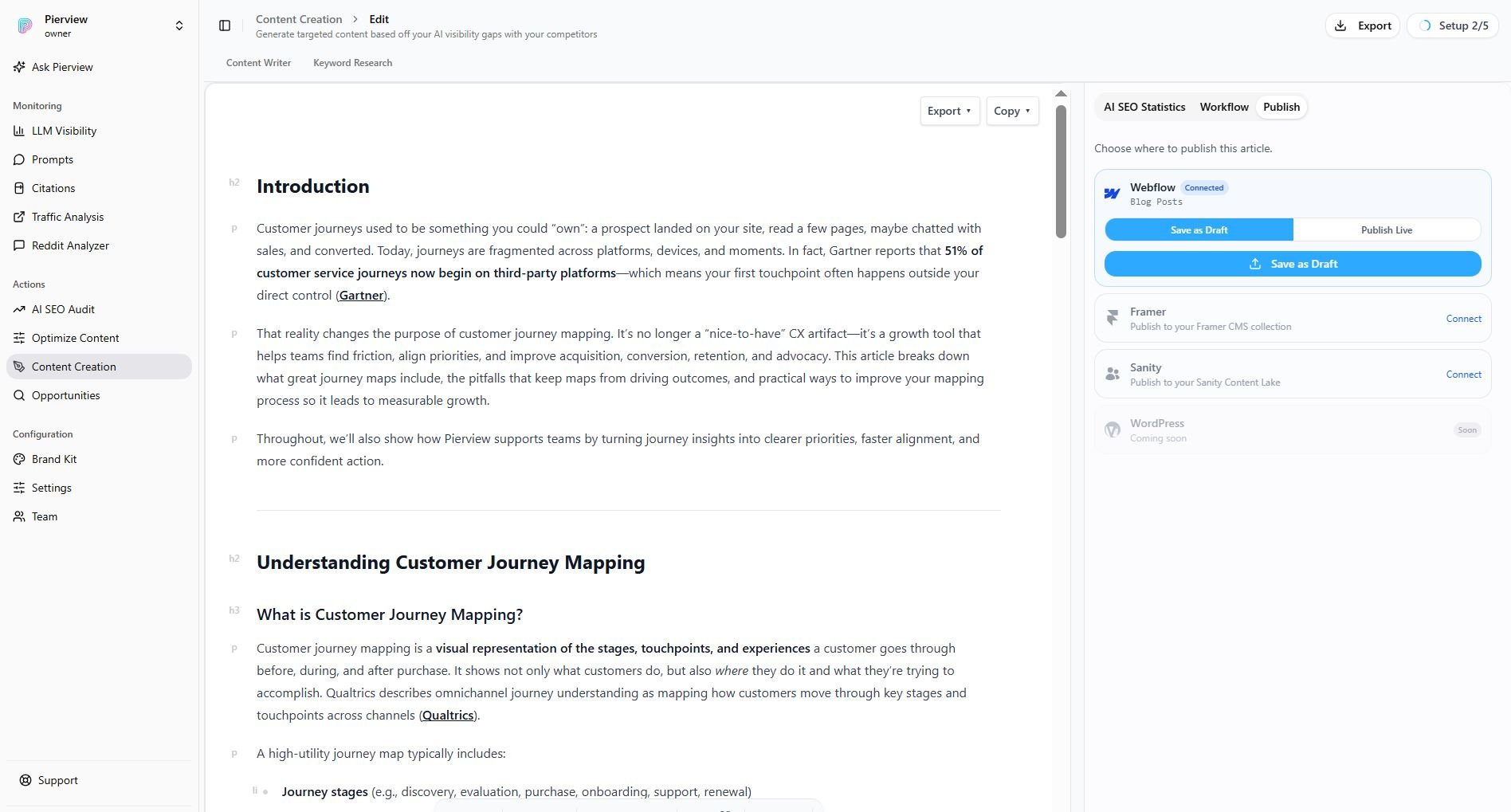
Troubleshooting
'Publish your Webflow site once' error when publishing live
'Publish your Webflow site once' error when publishing live
Webflow can only create live items on a site that has been published at least once. Click the Publish button in Webflow, then try publishing live again from Pierview. Saving as a draft always works, even before the first publish.
Tables aren't showing / content looks like raw HTML
Tables aren't showing / content looks like raw HTML
This depends on which Content mapping you chose:
- Rich Text: tables are stripped by Webflow, this is expected. Use the copy button on each table in the Pierview content editor to embed it manually. Everything else renders normally.
- Article HTML: make sure you mapped Content to the Article HTML Plain Text field (not a Rich Text field), and that your blog template has a Code Embed bound to that field (Step 3, b). If content shows as raw HTML, the Code Embed binding is missing.
Articles not appearing
Articles not appearing
- Verify your API token is correct and has
cms:read,cms:write, andsites:readscopes - Confirm the correct site and collection are selected in Pierview settings
- Check that the integration is enabled (toggle is on)
- For live publishing, ensure the site has been published at least once in Webflow
I already have blog posts, how do I show both old and new content?
I already have blog posts, how do I show both old and new content?
Easiest option: use Rich Text. Map Content to the same Rich Text field your existing posts already use (e.g.
Post Body). New Pierview posts then render through your current template with no changes and no conditional visibility, old and new posts behave identically. The only trade-off is that tables are copied/embedded manually via the per-table copy button. This is what Pierview recommends.If you specifically need tables to render automatically, you can use the Article HTML approach instead. Because Pierview then writes to a separate Article HTML field, you add a conditional visibility rule to each element (select the element → Settings panel → Conditional Visibility):- Rich Text element → show only when
Post Bodyis set - Code Embed element → show only when
Article HTMLis set
Tables look different from the rest of my site
Tables look different from the rest of my site
This applies to the Article HTML approach. Follow Step 3, d to add your own
.pv-content CSS overrides in Webflow’s Custom Code settings. This controls border colors, header backgrounds, and spacing to match your design exactly.I can't edit the article body in Webflow Designer
I can't edit the article body in Webflow Designer
This only happens with the Article HTML approach: because the article body lives inside a Code Embed, it isn’t directly editable in Webflow Designer. Make your changes in Pierview and re-publish, and the Webflow item updates automatically.If you’d rather edit content the normal way, switch Content to a Rich Text field. There’s no setup, the body stays editable in Webflow, and you only need the per-table copy button to embed any tables manually. Pierview recommends Rich Text for this reason.